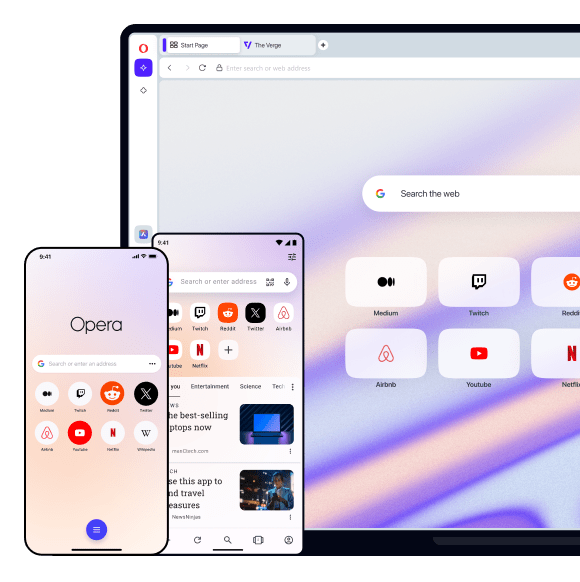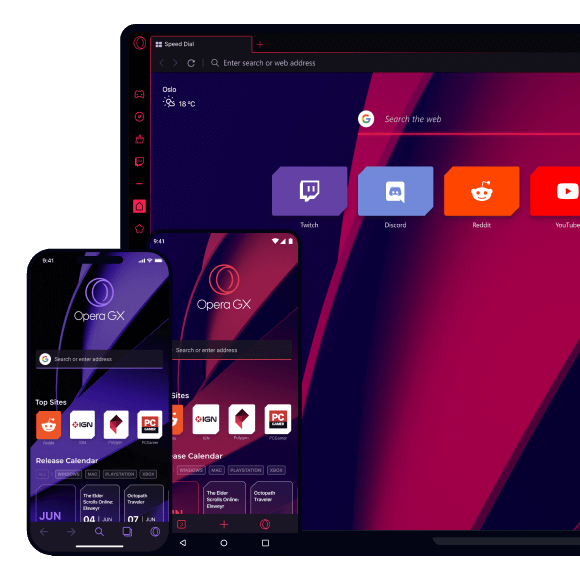


With Opera Dragonfly it is possible to debug in separate instances of the Opera browser, as well as other Opera Presto powered user agents. It doesn’t matter if these are located on the same machine or on another device such as a mobile phone or television. When put into Remote Debugging mode, Opera Dragonfly will listen for a connection to the IP address and Port specified. The separate instance of the Opera browser can then connect over a network and pass debugging information across the connection. Opera Dragonfly can then interact with the webpages and applications on the remote instance, just as if it were running locally.
The following steps create the setup for a remote debugging session.
The first step is to make sure both instances are connected to the same network. If debugging a mobile device, it will be useful to connect to a Wi-Fi network. Make a note of the IP address of the machine running Opera Dragonfly. If connecting to a separate instance on the same machine, such as a different version of the Opera browser or a Opera Widget, it is possible to use 127.0.0.1 (localhost).
The IP address can be found on Mac and Linux by typing ifconfig in a terminal window and looking for the inet value of the active connection. If there are multiple connections, such as Ethernet, Wi-Fi, Bluetooth, or others, there will be multiple inet values, so it is important to specify the correct value. On Windows, the output is somewhat simpler. Enter ipconfig at the Windows Command Prompt, and look for the IP Address label.

To begin debugging remotely In Opera Dragonfly perform the following steps:

On the remote Opera instance, perform the following steps:
opera:debug in the URL field.
If the connection is successful, Opera Dragonfly will communicate with the remote instance and will be ready to debug the selected document. The Remote Debug button will light up to show the connection is established. If the connection drops for whatever reason, it will switch to an error indicator.
Note: If the Opera instance doesn’t have a URL field (such as an Opera Widget), the connection dialog may be located under the Settings menu. This varies between products. Consult the developer documentation for the product in question for further details.
With the connection established, the final step is to select the document to debug. The debugging context selector at the upper-right of the Opera Dragonfly window contains a list of the open documents on the remote device. Navigate to the page to be debugged on the remote device and make sure the correct document is selected in the document selector. It may also be useful to detach Opera Dragonfly to provide more visual real estate.

Everything will behave as if a local document is being debugged. The main difference is that the page being debugged is controlled and displayed on the remote device. Changes made to the DOM or styles can still be made in real time. There may, however, be some delay depending on the latency of the connection and the performance of the device.
Once the debugging session is over, the remote debugging connection can be disconnected by clicking on the Remote Debug button, and then clicking on the Cancel button. It can also be disconnected on the device by returning to opera:debug and clicking the Disconnect button. Opera Dragonfly will then return to local debug mode.