If you are a journalist who would like additional information, please contact us.
The address field has been revamped with new search suggestions, and you can also find your favorite websites more quickly in the results list. To add pages to your bookmarks or Speed Dial instantly, just press the star in the address field.
Opera 11.60 offers significant improvements to the browser engine. Opera is faster on secure pages and uses less memory on advanced web applications. The new HTML5 parser ensures greater compatibility across the Web.
The Opera browser’s built-in mail client allows you to manage your messages automatically. In Opera 11.60, we’ve introduced a number of improvements, including a cleaner layout, message grouping, a more intuitive inbox layout and easier navigation.
Opera’s featherweight design puts the emphasis on the content, not the browser.
Your favorite sites are just a click away. Speed Dial gives you easy access to the sites you want. And, in the newest version of Opera, it’s easier than ever to add sites to your Speed Dial.
Let your information go where you go. Synchronize your Speed Dial, bookmarks, passwords, typed history, custom search engines, notes and more with Opera Link.
You won’t always have the fastest Internet connection. When your data slows to a crawl, turn on Opera Turbo. It uses Opera’s cloud-assisted browsing technology to compress web pages thus making them faster.
Note: For security reasons, Opera does not run secure pages through our server. Opera Turbo also does not compress Flash content.
Use your mouse to navigate more easily, open and close pages and much more. Opera’s visual guide to mouse gestures helps you master these time-saving tricks.
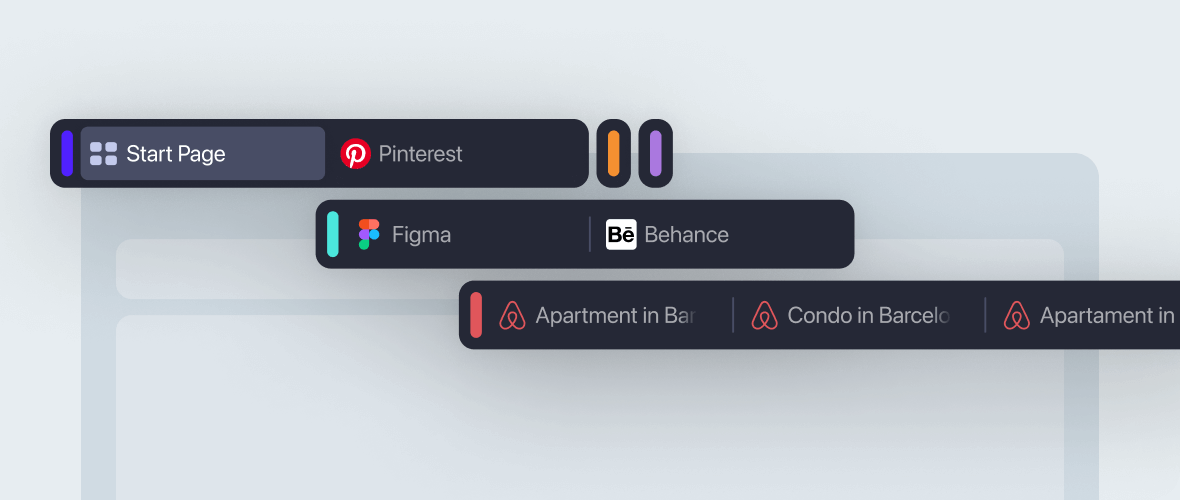
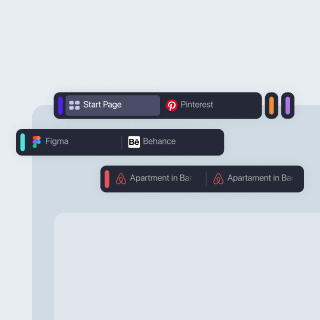
Opera’s tab-handling features are unparalleled. You can stack tabs like sheets of paper, pin tabs so they are always close at hand or even open private tabs without opening a separate instance of Opera.
Opera has a rich assortment of extensions to extend the functionality of Opera. You can add extensions to the browser itself or run them inside your Speed Dial.
Opera has two methods for searching the Web directly from the browser. The first is the search field, to the right of the address field. The search field has a drop-down menu with several pre-selected search engines.
You can also search directly from the address bar. Simply key in a word or phrase, and you will automatically search the Web using the default search engine. You can use keyword shortcuts to use other search engines. For example, entering “w Opera” will search Wikipedia for “Opera”.
Opera also lets you customize search engines. Try this: visit YouTube.com and right-click in the search field. Then click “Create Search”. You will be prompted to enter a keyword. (“You” might work well.) Then, you will see YouTube.com has been added to the search bar. Also, anytime you want to search YouTube, you can do so by typing “You” and the search term. For instance, “You Opera” will search YouTube for Opera videos.
When you first start Opera, you immediately see the Speed Dial. The Speed Dial has nine dials for you to populate with sites of your preference. You can customize the number of dials available by clicking “Configure Speed Dial”. For fast access to your Speed Dials, you can enter the numbers 1-9 in the address bar.
When you visit a site, Opera will remember the full text on the site. This way, when you want to recall pages you have visited, simply type some of the text in the address bar. Opera will find all the pages which have that text.
Another helpful trick when browsing is the Notes feature. Simply highlight some text on the page you wish to save, right-click and select “Copy to Note”. Opera will save a note in the Notes panel. Double-clicking on the note in the Notes panel will return you to the page where you took the note. A yellow note icon will appear in the address bar. Clicking this will open the Notes panel and display the text you saved.
If you open many tabs when browsing, Opera has many options to make tab management easier. In addition to tab stacking, mentioned above, visual tabs simplify your browsing. When you drag down the tab bar, tabs expand to give you thumbnails of the page. If you accidentally close a tab, just click the Closed Tabs button to the far right of tab bar. You can reopen your closed tabs with full browsing history for each.
Sometimes we visit pages that we would rather forget. For this, Opera has a private browsing mode. When you close a private tab or private window, Opera will erase browsing history, cookies, any login information and cache related to the tab or window. To open a new private tab, simply right-click on the New tab button or use the Opera menu (File menu on Mac).
Occasionally, the bandwidth bandit strikes, and slows down your Internet connection. When this happens, simply enable Opera Turbo using the speedometer icon in the lower-left hand corner of the browser. This will route your web requests through Opera’s compression servers. We reduce the size of the page so it gets to you faster. Crucially, Opera Turbo does not compress SSL connections, so secure sites remain secure.
The new address bar also shows data savings when Opera Turbo is in use. To enable Opera Turbo, simply click the speedometer in the lower left-hand corner of the browser.
For more information please contact our Press team press11[at]opera.com.